

You've been there.
The event is in two days and the security supplier sends a 140-person crew list to be added "by tomorrow morning." And someone, usually you, is about to spend an evening copy-pasting names into a portal, one row at a time.
Not anymore.
Bulk Import is now live in AccredTix Team Portal. Your teams download a template shaped to their allocation, fill it in Excel or Sheets, open it once and AccredTix does the rest: validate against live pass quotas, surface errors in a full review grid, then import the ready rows.
No more one-by-one data entry. No more "who went over allocation?" detective work after the fact.
Built for the people who actually run the lists
Team Portal is where teams (eg. your suppliers) work on their own: Catering, security, transport, production, without needing full access.
Bulk Import meets them where they already live: spreadsheets.
Whether you're an HOD loading your department or a security coordinator onboarding a overnight crew, the flow is the same:
Open your team's Team Portal
Hit Bulk Upload
Download the template → fill it → import
Event and team are locked to the portal you're in. No accidental cross-team uploads. No guessing which pass types you were allocated.
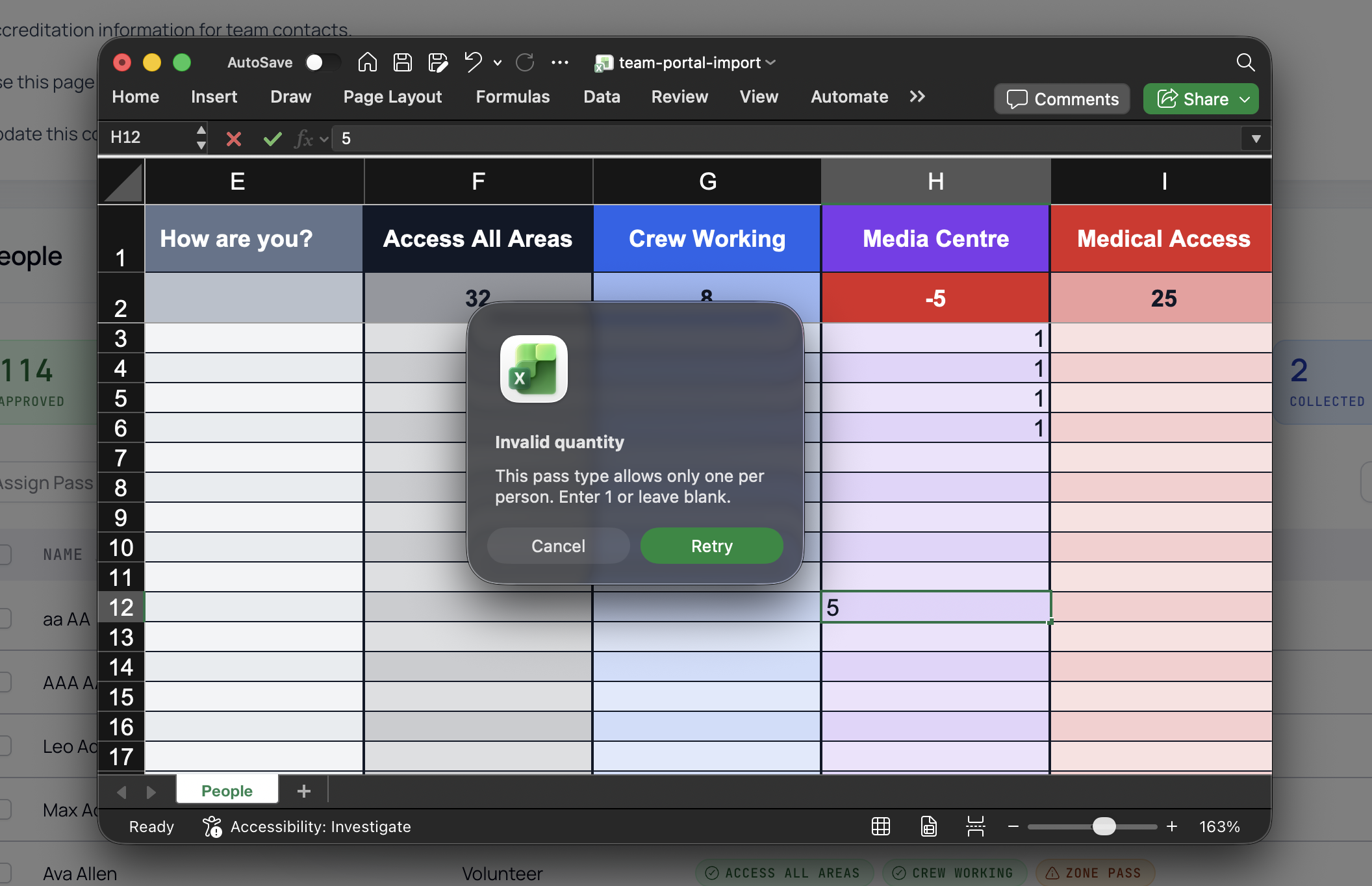
Review. Fix. Import. No CSV roulette.
Imports shouldn't be a coin flip.
After your file is checked against live allocations (including zone remaining), you land in a full-screen review grid:
Status chips: how many rows are ready, how many need fixes, how many already imported
Live remaining allocation summary
Edit cells in place — names, emails, custom fields, pass quantities, dates, zones
Skip a single row, or Skip errors in one click
Re-validate after edits, then Start import on the ready rows only
Got 120 good rows and 3 broken emails? Import the 120. Fix the 3. Import again. Done.
No "fix the whole file and re-upload from scratch" loop.
How to try it today
Open Team Portal for your event team
Go to Accreditation
Click Bulk Upload
Download the template, fill it, and choose your spreadsheet
Tips for a smooth first import
Use the Download Template File button. Don't invent your own headers
Excel shows Remaining / over-limit formatting best; Sheets works great if you export CSV or XLSX when done
Import ready rows first; leave error rows for a second pass